

Locations and logistics: knowing where every lot is
An auction with thousands of lots needs one answer to one question: where is it? In Bidvise you describe your building as locations, and per auction the Logistics page shows how many lots are where and which still have no place. Placing is done with a scanner or by looking a lot up by name.
1. Describe your building
Under settings you find Locations. A building has levels, such as ground floor and first floor; below those come rooms, and below those cabinets, showcases or boxes.
There are two kinds of location. A map location is drawn as a rectangle on the level’s floor plan, so you find it on the map. A list location has no rectangle; it only appears in the list. Choose the list kind for cabinets and boxes where a spot on the map adds nothing.
A location’s page shows the map, the locations below it with their counts, and the items that are there now. The menu on a location (on the map or in the list) opens the location, zooms into it, moves it to another parent or opens the edit form.
2. Read an auction’s Logistics
Open an auction and choose Logistics. At the top are five counts: lots, location known, location unknown, in house, left the building. Below is the tree of your locations with, per location, the number of this auction’s lots including everything under it. Building, floors and rooms are open; cabinets stay closed until you unfold them. Bidvise remembers per browser what you opened.
Click the location unknown count for the work list: every lot without a place yet, with photo, number and title. Filter by session or by a number range, say 1200 to 1300, because lots sit together in blocks. The filter is in the address bar, so after a placement you come back to the same block.
3. Place lots
Choose Place lots here on a location. That location is now the state of the screen; everything you enter lands there. The screen fills the whole page, with no menu around it, so it works on a phone in the building; on a wide screen the field sits on the left and the lot on the right.
With a scanner. Scan the lot number. One match places the lot at once, the field clears and the lot appears at the top of Just placed here. If the number occurs in more than one session, you pick the session. If the lot is already somewhere else, Bidvise does not just move it: the lot appears on the right with photo, description and current place, and the button says Move to this location. A second Enter does it.
By name. Type part of the title. A list opens with number, photo and current location. Pick a lot, check it on the right and press Enter or the button.
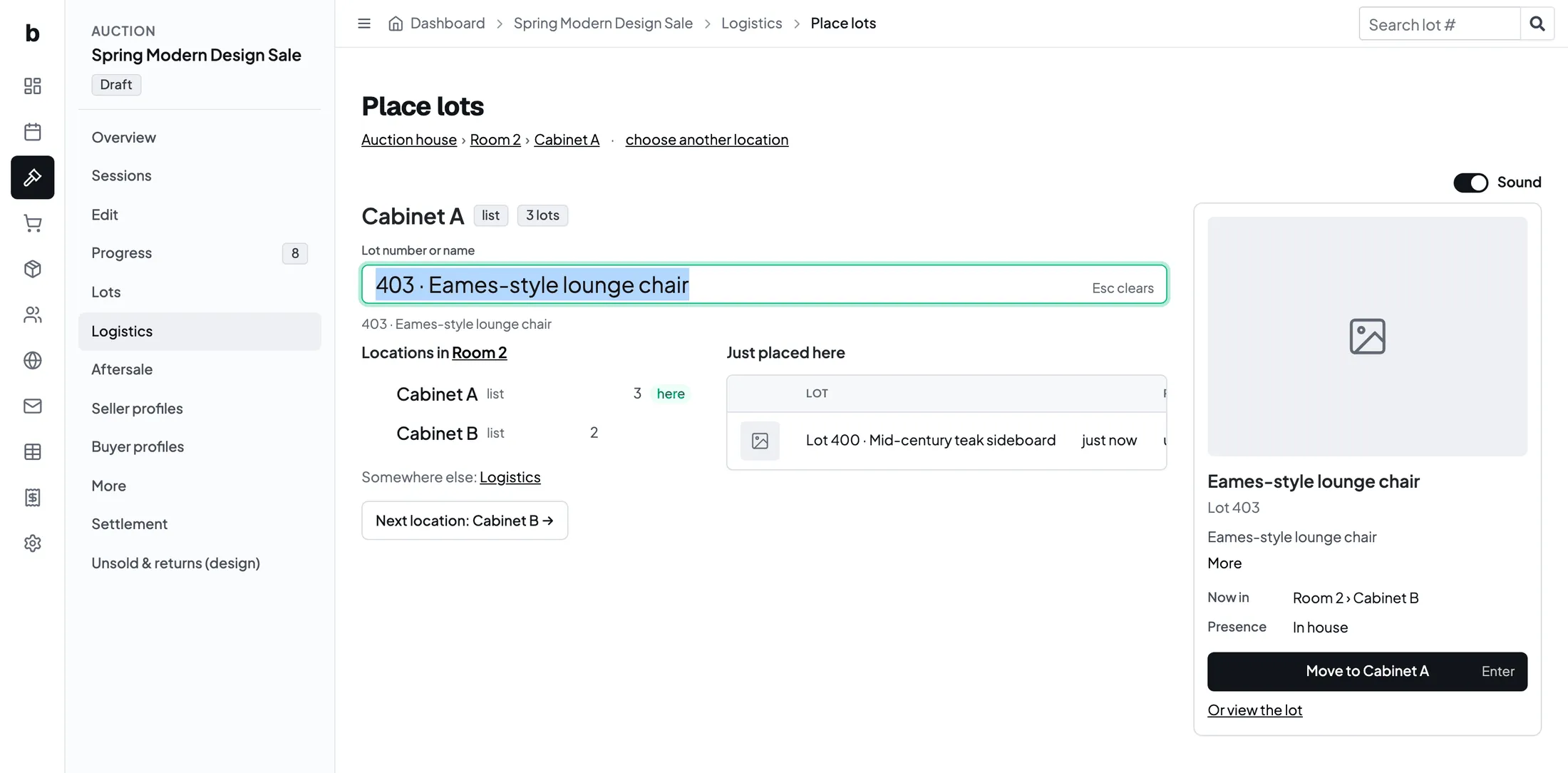
Under the field are the neighbouring locations on the same level, with Next location to walk through the room. Every placement is in the table on the right with photo and previous location, and can be reverted with Undo.
Sound and flash
Someone working with a scanner looks at the cabinet, not at the screen. So the screen flashes green briefly on a placement and red on an error, with a short tone. The Sound switch turns the tone off; the browser remembers that choice.
The newest version of this screen is on our staging environment now and reaches all auction houses with the next release.