

Let customers book and manage appointments
Appointment schedules let the auction house choose the days and times when consignors and buyers can visit for a valuation or collect their purchases. Once the schedule and availability are set up, the customer chooses a day and time on the website. For a collection appointment, the buyer also selects the relevant invoices. Bidvise records the appointment and the selected invoices.
Go to: emails and access, the schedule, three examples, the website, preparing collections or troubleshooting.
Choose the appointment type
There are two types of schedule:
| Type | Suitable for | What is recorded? |
|---|---|---|
| General | Valuations, consignment visits and viewings | Time, name, email address, phone number and an optional note |
| Collection | Collecting purchases from a particular auction | The appointment and the invoices selected by the signed-in buyer |
A collection schedule belongs to one auction. The invoices can contain lots from different sessions within that auction. Buyers must sign in to see their own invoices.
Each schedule allows one appointment at a time. Appointments on different schedules can take place at the same time, so check that enough staff and space are available.
1. Set up emails and access
Choose the three email templates
Open the email templates and select a template for Appointment confirmation, Appointment cancellation and Appointment reminder. All three are required, even if reminders are switched off.
Check the subject, sender, layout and appointment details. Each template is shared by all schedules for the auction house. Use the schedule name and appointment address as template fields so the same email works for valuations, viewings and collections.
| Field | Contents |
|---|---|
{{ appointment_name }} | Visitor’s name |
{{ schedule_name }} | Schedule name |
{{ appointment_start }} and {{ appointment_end }} | Start and end times, including the date |
{{ appointment_timezone }} | Auction house’s time zone |
{{ appointment_address }} | Address for the appointment |
{{ appointment_manage_url }} | Personal link to manage the appointment |
Use the escape filter for fields in HTML templates. For an address on several lines, use {{ appointment_address | escape | newline_to_br }}. Include the management link in confirmations and reminders so visitors can change or cancel their booking.
The auction house’s master administrators also receive a notification when a new appointment is booked. Reminders go to the visitor.
The confirmation includes a calendar invitation that the visitor can add to their calendar. Staff calendars are not synchronised with it.
Check permissions and the sign-in page
Staff need read access to Planning to view appointments and write access to edit schedules, cancel appointments and record attendance. Access to lots and collection actions is covered below.
If visitors must sign in, check that the correct page is selected as the sign-in page under Website → Routes. To test the buyer’s booking flow, sign in with a buyer account rather than an administrator’s website preview.
2. Create the schedule
Open Planning → Appointment schedules and create a schedule. Give it a recognisable name, such as Autumn auction collection. This name also appears in the booking widget and appointment emails.
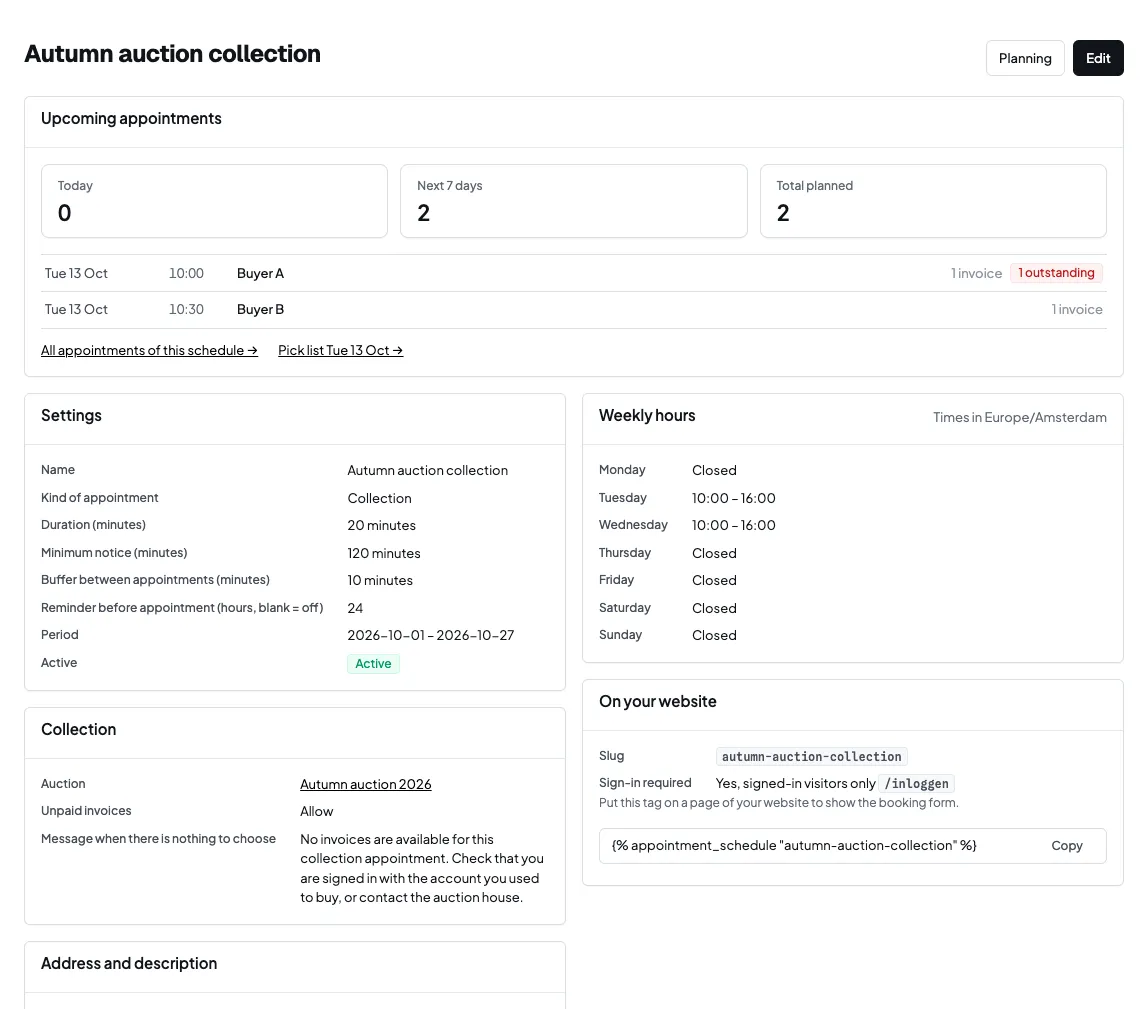
Duration, notice and breaks
- Duration is the length of the visit, between 5 and 480 minutes.
- Minimum notice sets how many minutes ahead customers must book.
- Buffer between appointments leaves time between visits, outside the appointment itself.
- Reminder sets how many hours before the appointment a reminder email is due. Leave it blank to switch reminders off.
For example, a 20-minute appointment with a 10-minute buffer gives start times of 10:00, 10:30 and 11:00 within opening hours. The first appointment ends at 10:20, leaving ten minutes for the team.
Reminder emails are processed in the background, so delivery may vary. A booking made shortly before the visit cannot receive a reminder 24 hours in advance.
Dates and weekly hours
Set one opening and closing time for each available weekday. All times use the auction house’s time zone. An appointment must fit within the opening hours.
Set a start and end date to limit the schedule to a period, including both dates. The weekly hours still determine which days are available within that period. Leave the dates blank for an ongoing schedule.
Each day has one continuous opening period; separate morning and afternoon periods are not supported.
Exceptions
Add an exception for a closed day, a closed period or different opening hours. An exception can also open a Saturday that is normally closed.
Exceptions replace the weekly hours for the dates they cover, within the schedule’s start and end dates. Avoid overlapping exceptions. If they overlap, the one with the later start date applies; if both start on the same date, the most recently created one applies.
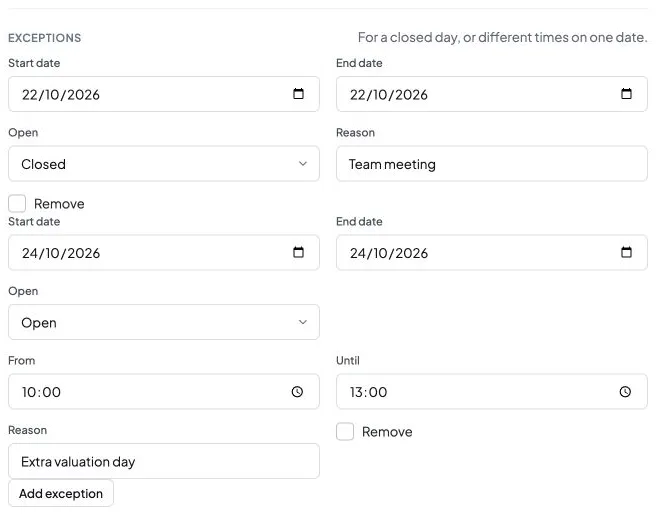
Existing appointments keep their times and duration when the schedule changes. Check any appointments already booked before changing opening hours.
Address and instructions
Choose a branch or enter another address. If neither is provided, Bidvise uses the auction house’s address. Check this when collections take place elsewhere.
Use the description for arrival instructions, packing requirements or a request to include lot numbers. Visitors see it beside the calendar. The appointment address is available as an email field; the schedule description is not.
3. Three example schedules
Use these settings as a starting point and adjust them to suit the team.
| Valuation and consignment | Viewing | Collection | |
|---|---|---|---|
| Type | General | General | Collection |
| Duration | 30 minutes | 20 minutes | 20 minutes |
| Buffer | 10 minutes | None | 10 minutes |
| Minimum notice | 120 minutes | 60 minutes | 120 minutes |
| Reminder | 24 hours before | 24 hours before | 24 hours before |
| Sign-in | Optional | Optional | Required |
| Dates | Ongoing or specific valuation days | Viewing days only | Auction collection days only |
Valuation and consignment, example text: “Bring the items you would like to discuss and any documents about their provenance. In the notes, tell us how many items you are bringing.”
Viewing, example text: “Include the lot numbers you would like to view in the notes. The appointment reserves a visit, not the lots.”
Collection, example text: “Select the invoices for the purchases you are collecting. Bring suitable packing materials and mention any transport arrangements or large items in the notes.”
4. Choose which invoices can be booked for collection
For collection schedules, select the auction and choose how to handle unpaid invoices:
| Option | Effect on booking |
|---|---|
| Allow unpaid invoices | Buyers can select an invoice that has not yet been paid |
| Paid invoices only | Unpaid invoices are not offered |
| Block buyers with unpaid invoices | A buyer with an unpaid invoice for this auction cannot book a collection appointment |
These rules use the invoice’s payment status. A part-paid invoice still counts as unpaid. The rule controls booking eligibility; staff check payment again when handing over the goods.
Buyers see their own processed invoices containing lots from the selected auction. An invoice already linked to an open appointment cannot be booked again. Cancelling the appointment makes the invoice available for a new booking. After a partial collection, ask the buyer to contact the team to arrange another visit.
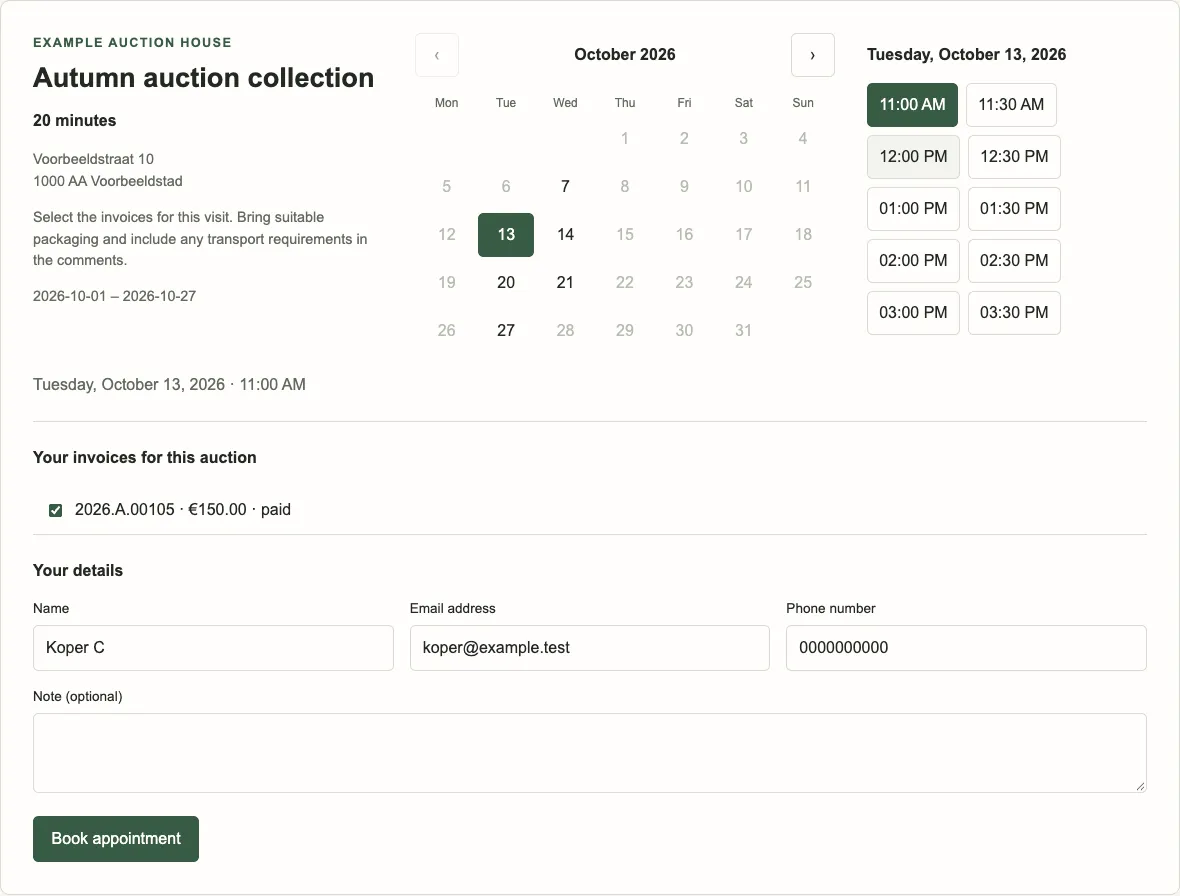
5. Add the booking widget to the website
Copy the template code from the schedule and place it on the relevant website page. For example:
{% appointment_schedule 'autumn-auction-collection' %}The widget uses the website’s styling. The Bidvise team can help with placement and layout.
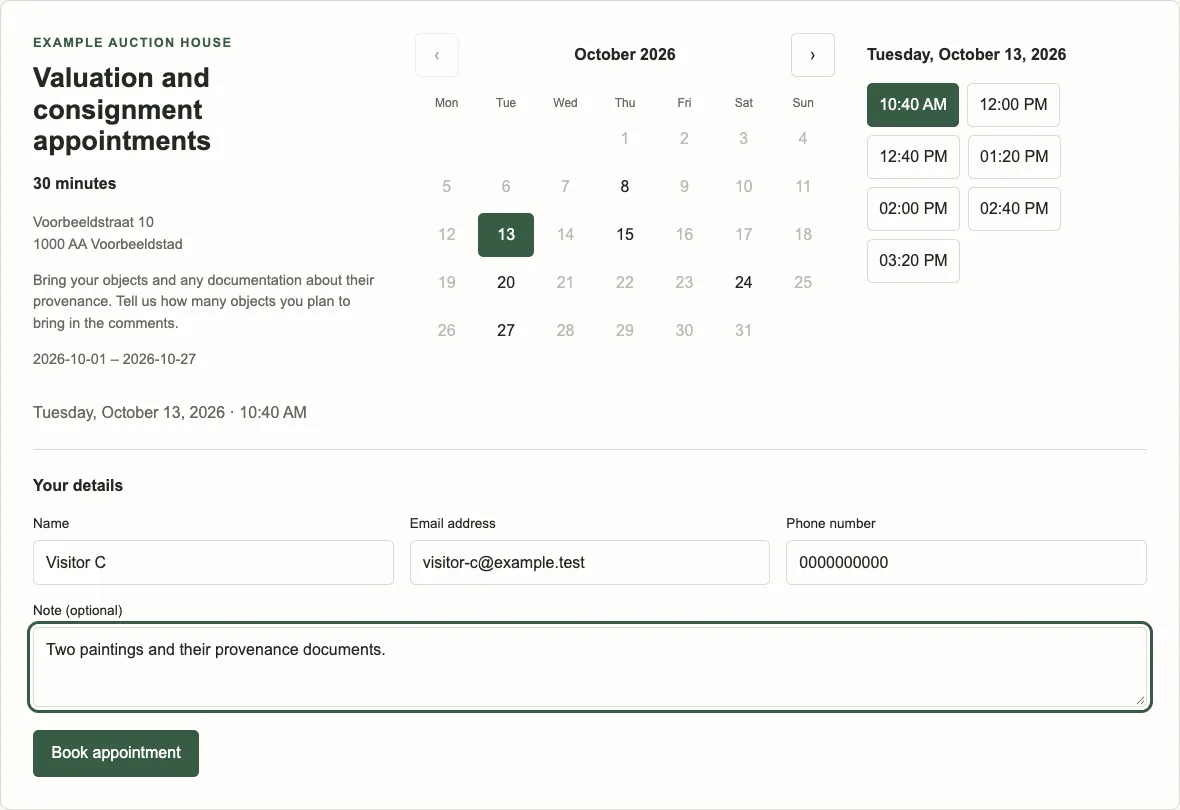
The visitor chooses a day and time, then enters their name, email address, phone number and an optional note. For collection, the signed-in buyer also selects their invoices. A confirmation appears on the page after booking.
6. Confirm, reschedule and cancel
The confirmation email contains the appointment details. Include the personal management link in the email template so visitors can view, reschedule or cancel their appointment.
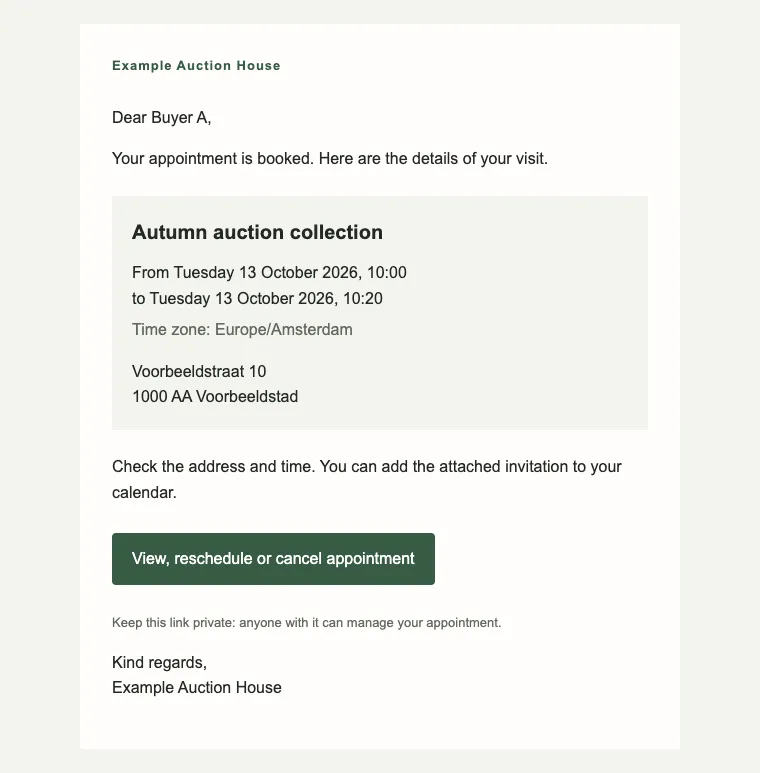
After rescheduling, the visitor receives a new confirmation with a new management link. If the chosen time has already been taken, the original appointment stays in place.
Staff can cancel an appointment from its detail page. The time slot and linked invoices then become available for a new booking.
Switch off the schedule to stop new bookings. Existing appointments remain in place.
7. View and manage appointments
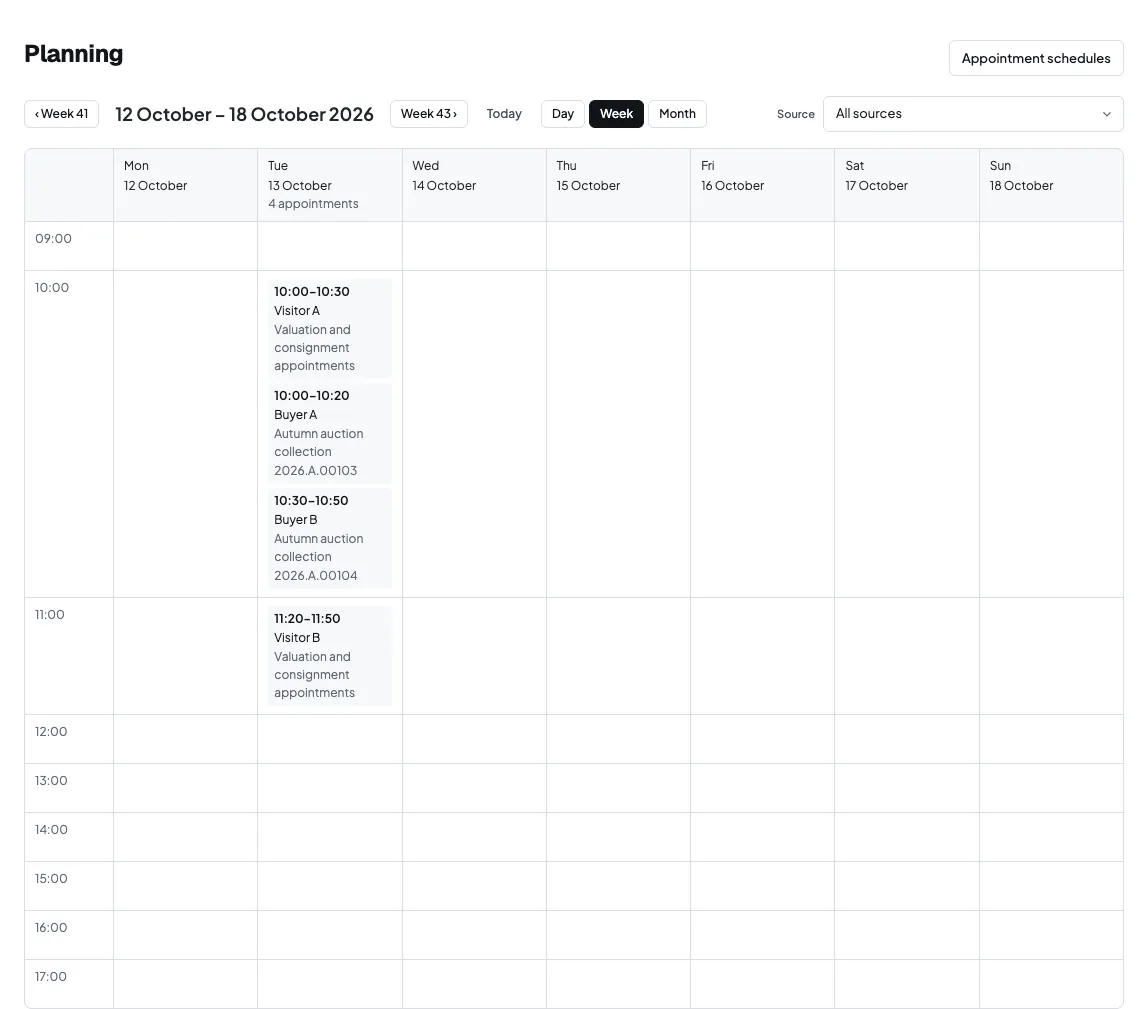
Planning has day, week and month views. Use the source filter to view appointments for a particular schedule.
Appointments provides a daily list with a date selector and schedule filter. Open an appointment to see the contact details and note. Record whether the visitor attended or did not turn up here too.
8. Prepare for collections
Open a collection appointment to view the invoices, lots and their locations. Read the buyer’s note for any special collection arrangements.
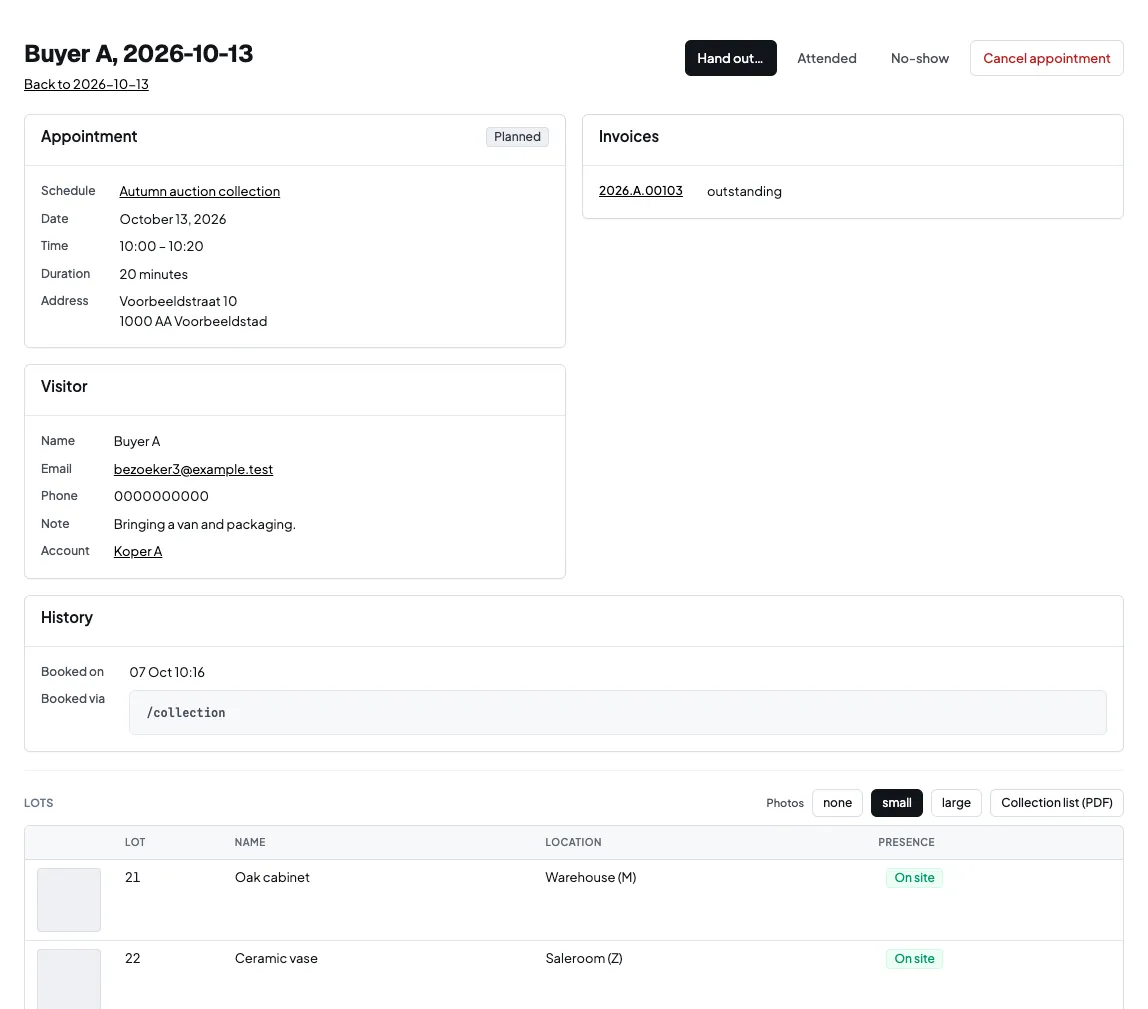
Two lists help with preparation:
- The collection list for one appointment shows the goods for that buyer.
- The daily pick list can be grouped by location or appointment. Group by location to gather goods around the building, or by appointment to prepare each buyer’s purchases.
When printing, choose no photos, small photos or large photos.
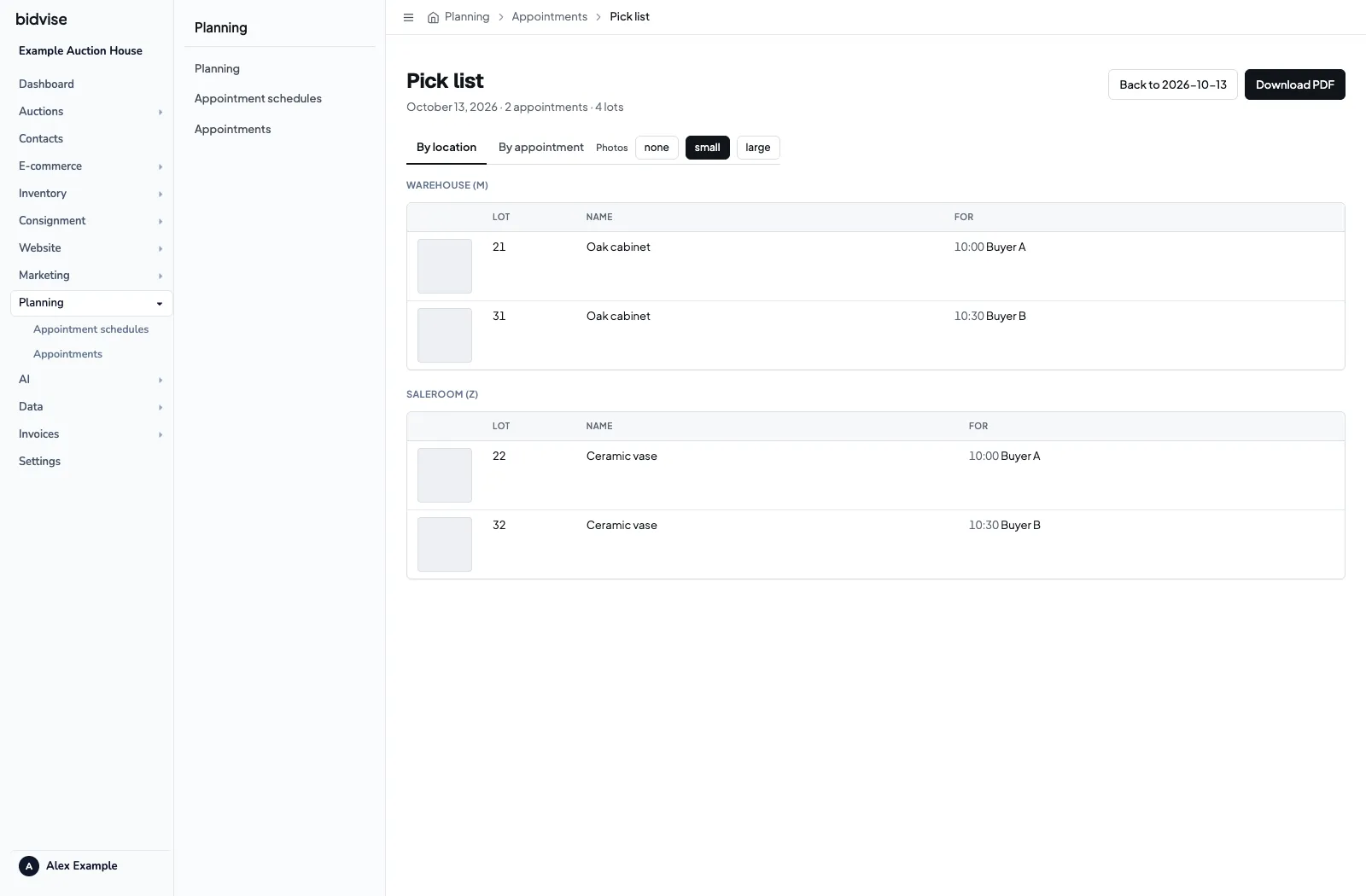
Staff need read access to Planning and Lots to view these lists. To see amounts, they also need read access to Invoices.
9. Record which goods are collected
Open Hand out on the appointment and select the lots the buyer is taking. Leave lots for a later collection unticked.
For unpaid invoices, the outstanding amount is shown. This accounts for partial payments: an invoice of €1,000 with €800 paid has €200 outstanding.
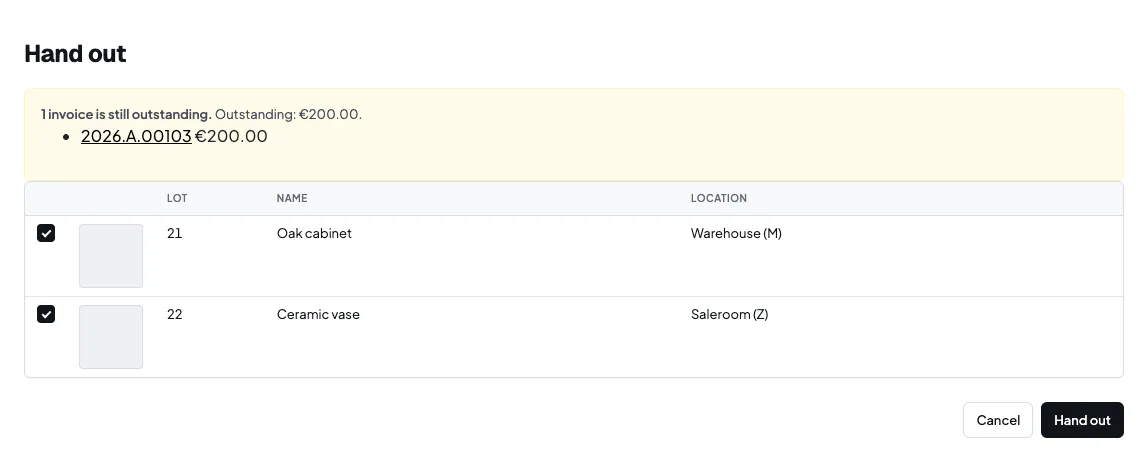
Check payment before releasing goods. The warning does not block the hand-out; the auction house decides whether the buyer may take the goods. Record payments received against the invoice.
After confirmation, the selected items are recorded as having left the building. If attendance has not yet been recorded, the appointment is also marked as attended.
The invoice is marked Collection started when the first item on that invoice is handed over. After a partial collection, the remaining items stay for a later visit.
Handing out goods requires write access to Planning and read and write access to Lots.
Troubleshooting
| What happens? | What to check |
|---|---|
| The schedule list asks for templates | Is an email template selected for all three appointment email types? |
| Sign-in required cannot be saved | Is a working website page selected as the sign-in page? |
| No times are available | Is the schedule active? Check its dates, weekly hours, exceptions, minimum notice, duration and existing bookings. |
| The widget does not appear | Is the schedule active and was the template code copied from the correct schedule? |
| A buyer cannot see any invoices | Are they signed in with the correct account? Check the auction, processed invoices, payment rule and existing appointments. |
| The email has no management link | Does the selected template include appointment_manage_url? |
| No reminder arrives | Is a reminder set and is the appointment still scheduled? Check email processing too. |
| Staff cannot see amounts or the hand-out button | Check their Planning, Lots and Invoices permissions. |
Check the schedule before use
Make a test booking and check the available times, confirmation email and management link. Then check that the appointment appears correctly in Planning. For collection, also check invoice selection and the pick list.
Further reading: Locations and logistics and Invoicing and payments.